IPTV HDMI · 4K PLAYBACK
Which HDMI Cable Do You Need for 4K IPTV?
Choose an HDMI cable and input for your streaming device’s 4K output, then confirm the stream’s source resolution.
Read the guide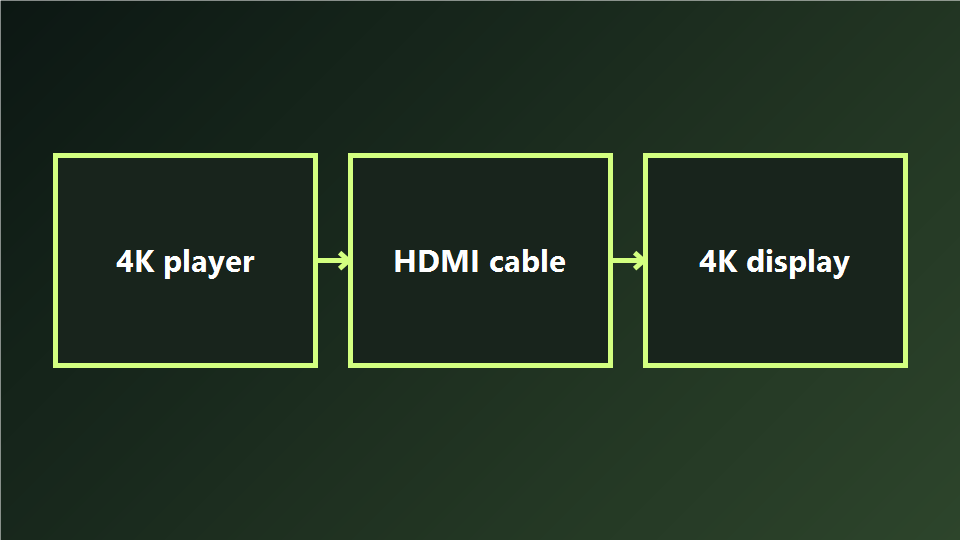
Check the playback chain before buying a cable
Look up the resolution and refresh rate supported by your player, TV input and any receiver in between. Match the cable to the output mode you plan to use. If your picture is already stable at that setting, keep your current cable.
Set the display mode and confirm playback
Use automatic display detection if your device offers it. Check your TV’s input settings for any enhanced HDMI mode required by the manufacturer. Test with a known 4K stream and look at the source resolution in the player when available.
Diagnose dropouts and buffering separately
Brief blackouts or picture loss across menus and apps can point to HDMI. If menus stay visible while one channel buffers, check the stream and internet connection first.
Explore the IPTV setup guide, learn how to add an M3U playlist, or check the EPG guide for schedule issues.
More IPTV resources from IPTV4K Plus, IPTV Subscription 4K and IPTV4K Life.